0

Smokin' Woman in Photoshop

In this tutorial, I'm going to show how to create one smokin' woman using a couple source pics, and just a few of the features associated with Phoenix.
So follow along and I'll try to share a few secrets into some of the magic, without the smoke and mirrors.
Well, maybe a little smoke.

With the general idea already in my mind, I needed to find a suitable background image.
The image I found turned out perfect because of the line of direction of the main figure's vision. He's looking directly where we're going to place our smoke, creating unity among our elements. How convenient!

1. The first step was to remove most of the smoke from the original image, as we'll be bringing in our own later on.
I did this simply by taking the Clone stamp tool, shift-clicking a clean area of the background to sample, and painting over the smoke covered areas with our selected sample.

It doesn't need to be perfect at this point, as most of it will be covered by the end anyways.

2. Next, I brought in a high contrast image of a model. Not only do the natural stark shadows and highlights of this image look good, but hey, the contrast will do half the work for us in the long run.
Using a combination of the Move and Distortion tools, I resized and situated the model right where we want her.
Then set the layer's blend mode to "Screen".

3. Now that we have our basic composition in place, it's time to get to the real action.
Using the liquify tool, I smudged the edges of the figure and pulled out trails to draw a smokey effect.
I did that until I was left with a wispy looking figure.
And remember, the more work you do in this stage, the less time it'll take to cover your overlooked areas later on.

It's almost good to go just as is, if I do say so myself.
But since we saved time by finding excellent source pics to begin with, let's spend our free time fine tuning this thing up.

4. Our lady could always be more smokin'. And what's more smokin' than, well, smoke?
Using the Lasso tool, I copied and pasted a segment from an image of actual smoke onto a new layer.

I set this layer to "Screen", just as we did with the woman. Using the Move tool, I resized the piece to situate around our lady friend.
I repeated that step numerous times until our lady was covered entirely hiding my earlier (now hideous in comparison) attempts to freehand the smoke entirely.

5. Now we're getting somewhere! But I still wanted to expose a few of the highlights of the smoke a bit more. Just to give it that extra pop.
I did this by using a white brush to paint a rough outline around the figure on a new layer, then set this layer to "Overlay".

6. Then, as a final touch, I filled the entire image in a light blue on a new layer, then set this layer to "Overlay", and set the opacity to 25%.
Of course, this step is not 100% necessary, but it adds a little extra mood and brings the whole image together harmoniously.

And there you have it. With the magic of Phoenix, you've created the smokin' woman of your dreams.

0

Energy Spheres in Photoshop

For this tutorial you’ll want to find a photo of someone doing something that looks a bit larger than life. I used this photo that I found at the stock photo website Stock Exchange. For this tutorial you’ll need a photo that you want to manipulate and some special brush sets which I downloaded from here.

This will be the final result.

  • 1. Download the brush set and install it.
  • 2. Now I’ll show how to take a child with a big imagination and turn him into the powerful being he imagine himself to be.
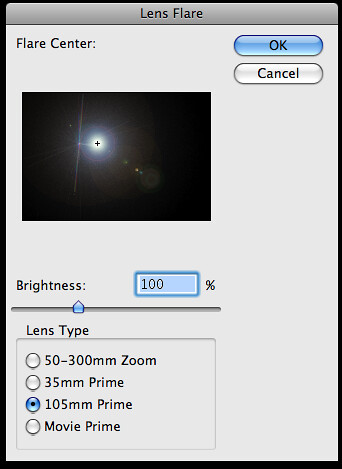
  • 3. We’ll start by creating a new layer on top of our original and filling it with black. Next we want to select Filter >> Render >> Lighting Effects >> Lens Flare
  • 4. Use the 105mm Prime with the Brightness setting of your choice.
  • Lens Flare

  • 5. This will create a bright flash. Move it to the point where you want the ‘energy ball’ to appear.
  • 6. You may notice that when you move it, you can see the edges of the layer. To rectify this, select the layer and add a ‘Layer Mask’.
  • 7. Select default colors (white and black). With the layer mask selected, use the Gradient Tool >> Radial Gradient >> Reverse and drag from the center outwards. This will mask everything in a sphere around the center.
  • 8. Set both of these layers to the ‘Hard Light’ setting.
  • 9. I like to use the Image >> Adjustments >> Photo Filter to make the colors “pop”. I also used this setting to make the lens flare a bluish color. There are other ways to do this so experiment with your options.
  • 10. Using the Brush set we installed earlier we want to apply them to the energy balls. I used the color black, with the layer’s Blend Options set to ‘Overlay’.
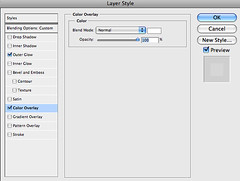
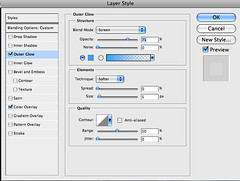
  • 11. With this layer selected, set the Layer Style settings like so:

  • 12. Using the same technique that we used in Step 7, we want to mask the edges of our brush layers.
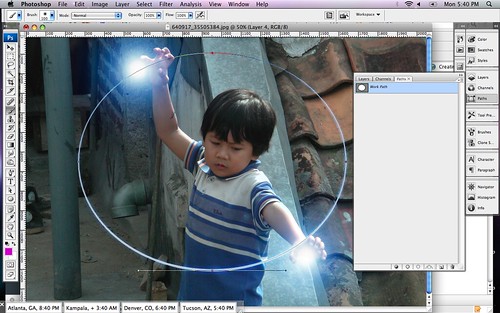
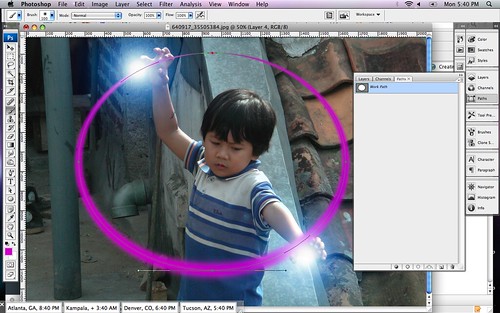
  • 13. To create the ‘arc of light’ we’ll use paths. Select the ‘Ellipse Tool’ and change it from ‘Shape layers’ to ‘Paths’. Now, draw a large circle or ellipse that includes both energy flares.
  • 14. Once the arc is drawn we want to stroke it (no jokes please). Select a brush that’s very small, maybe about a brush with a 5px diameter and use the color white. Go to ‘Paths’ right click on the selected path, and select ‘Stroke Path’. Check the ’simulate pressure’ option, this will give the ring a bit of perspective with a heavier stroke on one side and a lighter stroke on the opposite side.
  • 15. Repeat this step twice. Each time use a different brush setting that is bigger than the one before it. I started with the 5px brush, then I used a 45px brush followed by a 100px brush. Each time use a different color. The topmost (bigger) arc should be set to ‘Linear Dodge (Add)’ with an opacity of 35%. The middle layer should be set to ‘Overlay’ and the original (the white one) should be set to ‘Linear Dodge (Add)’.

  • 16. I grouped these together then, using the technique from Step 7 again, I use layer masking to block one half of the sphere I created.
  • 17. To create the energy ‘tendrils’ that are leaping from the arc. Duplicate the grouped folder from Step 16. Then merge the group or folder into one layer. Select Filter >> Liquify and distort the arc to look like it should for your image. Secondly, we’ll select Filter >> Distort >> Ripple and tweak it to look a bit more like electricity.
  • 18. Now we’re done. Outside of some techniques that I used to make the image more polished, this completes the tutorial.

0

Create an Energy Drink Ad Design in Photoshop

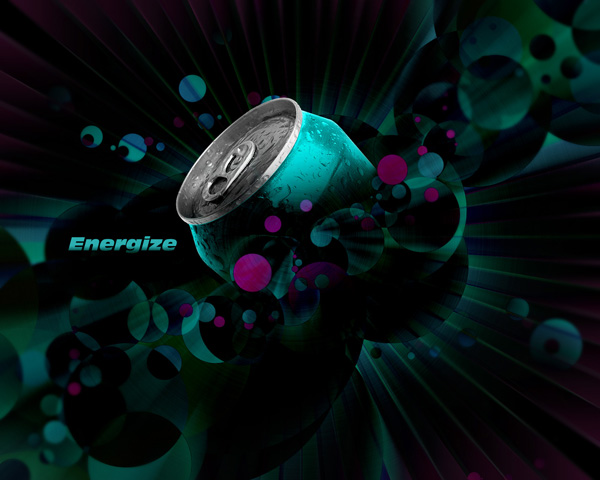
Final Image Preview

Before we get started, let's take a look at the image we'll be creating. Click the screenshot below to view the full-size image. As always, the layered Photoshop file is available via our PSDTUTS Plus membership.

Final Click

Step 1

The first thing that you need to do is plan a color palette. But in order to choose your colors, you need to understand how the Difference Blending Mode works. It looks at the color information in each channel and subtracts either the blend color from the base color, or the base color from the blend color. This depends on which has the higher brightness value.

Difference only works when transforming dark to light, and not light to dark. However, if you apply any type of blur to a difference layer, you'll get smooth gradients and dynamic lighting. Since the end result needs to be dark, choose bright colors that in combination with a radial blur will create gradients from light to dark.

So begin by opening a new Photoshop document at 1600px by 1280px. Fill the background layer with this color: (#b1c900).

Step 2

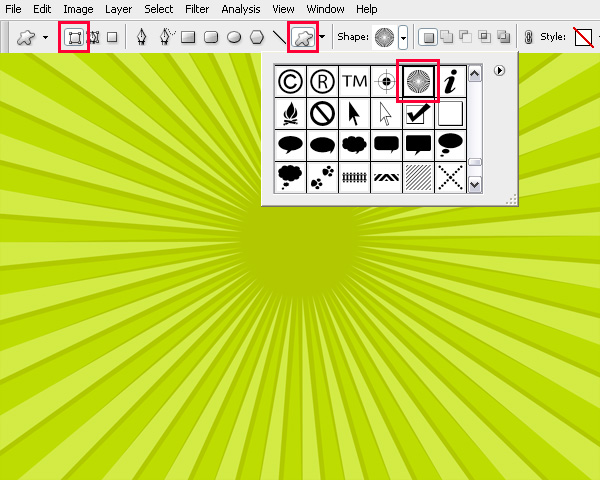
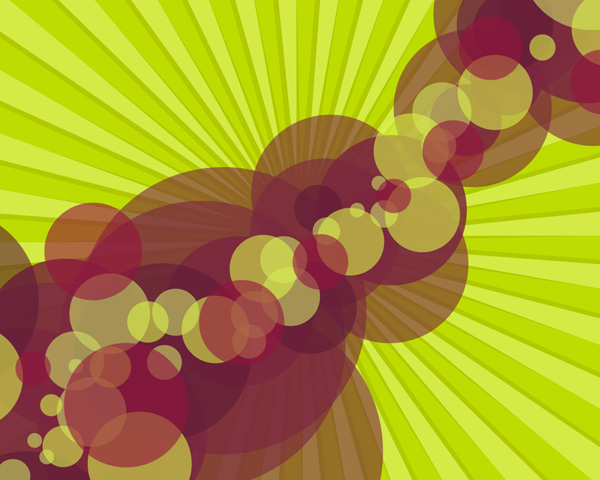
Bring up your Custom Shapes Menu and select the Ray shape, as shown below. You can find it under the Symbols Folder. Then draw the first one right in the middle that is large enough to spread outside the canvas. Use this color: (#bddc01).

As soon as you create the first one, duplicate it. Then rotate the copy so that it leaves just a thin line of the background. Then change it to this color: (#d3eb45). You should align them so that they match the image below.

Step 3

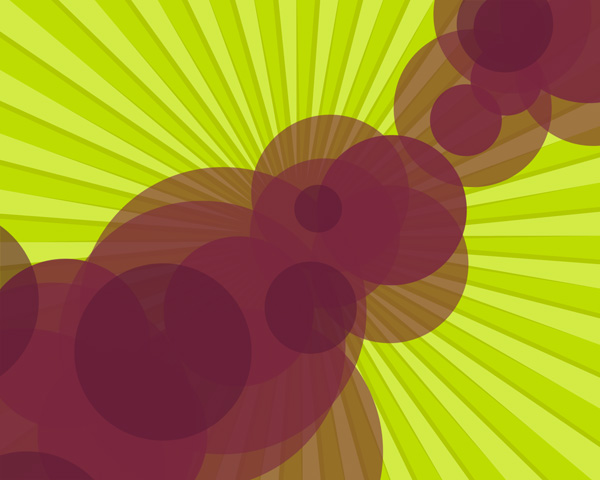
At this point, begin painting with a Regular Circle Brush at different sizes. Set your Brush Opacity to 60%, change the color to (#7a263e), and click individually while changing the size for each spot. By manually creating each spot, you have more control over your layout. Once you've created the first set, add a few spots on a separate layer with this new color: (#93133d).

Step 4

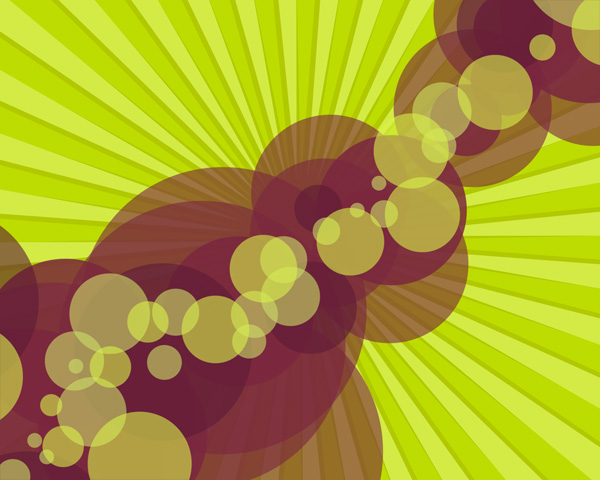
Next, make a new layer and add smaller spots with this color (#cdde67). Again, on a separate layer, paint even smaller spots with a slightly more saturated color: (#d9f14a).

Step 5

Now it's time to add some contrast by using a saturated version of the color that you used for the very first spots: (#93133d)

Step 6

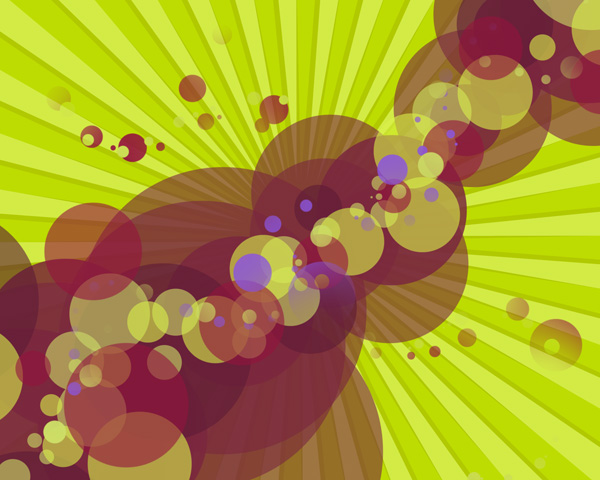
To finish off the effect, create some small spots that follow the original layout, and others that fill the unused space of the canvas. Make sure to fade them out gradually as they approach the edge of the canvas. You don't want those to become distracting later. As a final touch, add a new color that will later be transformed into a vivid pink: (#7b2dc1).

Step 7

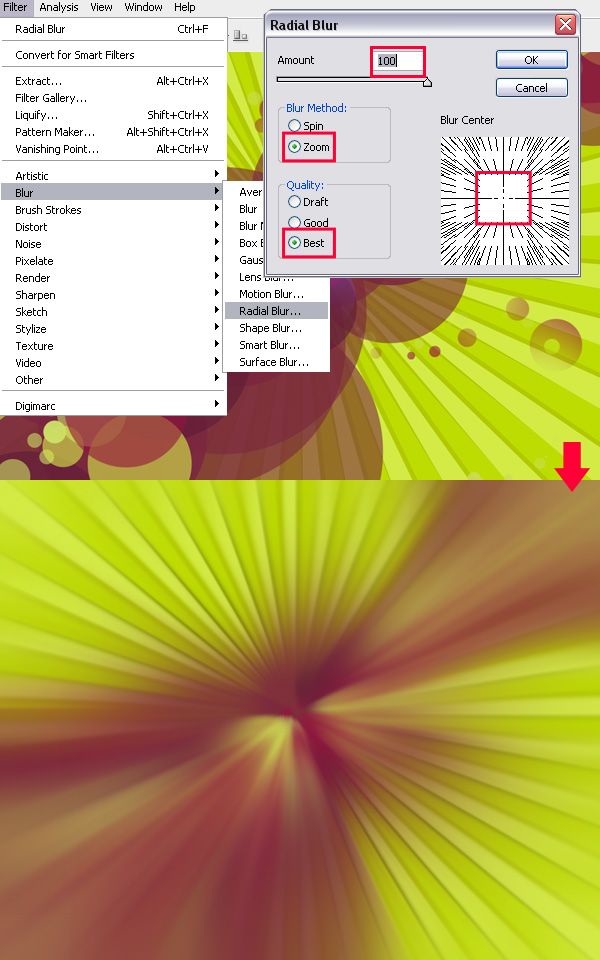
As pointed out before, the radial blur effect plays a crucial part in the overall image. Select all the shapes, spots, and background layers and press Ctrl+Shift+E to merge them together. After they are all merged, duplicate the layer. Name this new layer "radial blur". Then go to Filter > Blur > Radial Blur and insert the values shown below.

Step 8

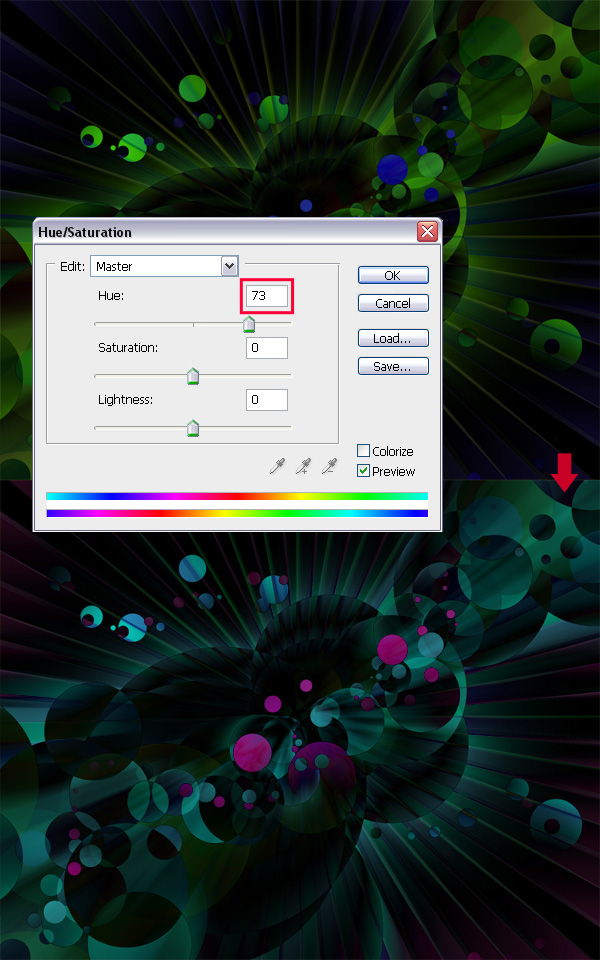
You should now have two layers: the background layer that you recently merged together and its duplicated version that you named "radial blur." Select the "radial blur" layer and change its blending mode to Difference. You should now get a dark image with bright green and blue colors. It's not the hue that we want, so merge both layers together. Then go to Image > Adjustments > Hue/Saturation, or simply press Ctrl+U. Then change the Hue to 73.

Step 9

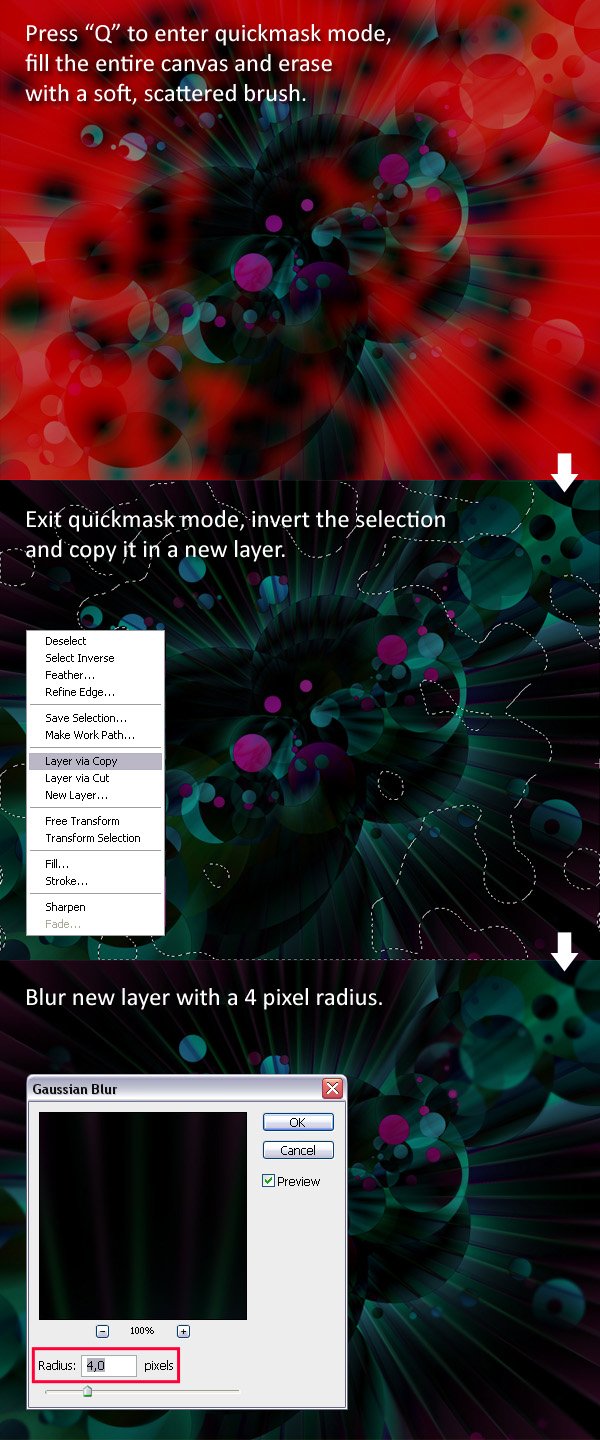
In this step you'll add some depth to the image that will guide the viewer's attention to the center of the design. Enter Quickmask Mode (Q), and use the Bucket Tool with the color set on black to fill the whole canvas. Next select the Eraser Tool, and add some scattering to it's preset.

Now drag across the canvas while focusing on the center. As soon as you're done with that, exit Quickmask Mode (Q) again, and invert the selection by pressing Ctrl+Shift+I. Then right-click on the canvas while the Marquee Tool is selected. Then chose the Layer Via Copy option. As soon as you have the selection in a new layer, go to Filter > Blur > Gaussian Blur, and blur it by 4 pixels.

Step 10

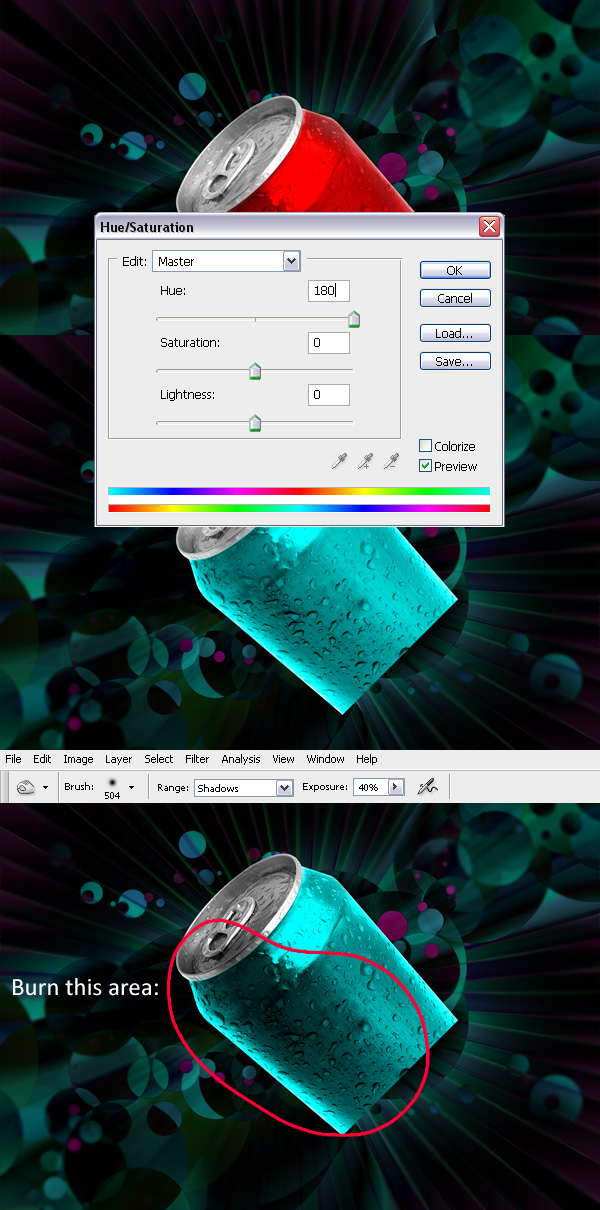
At this point it's time to add the can. So download this image from stock.xchng. Then cut it out with the Pen Tool. Don't worry about the bottom, since you will only need the top. Once you have that done, position it in the center, and rotate it at a 45 degree angle. Then change the hue by 180. The use the Burn Tool to darken the lower left half of the can.

Step 11

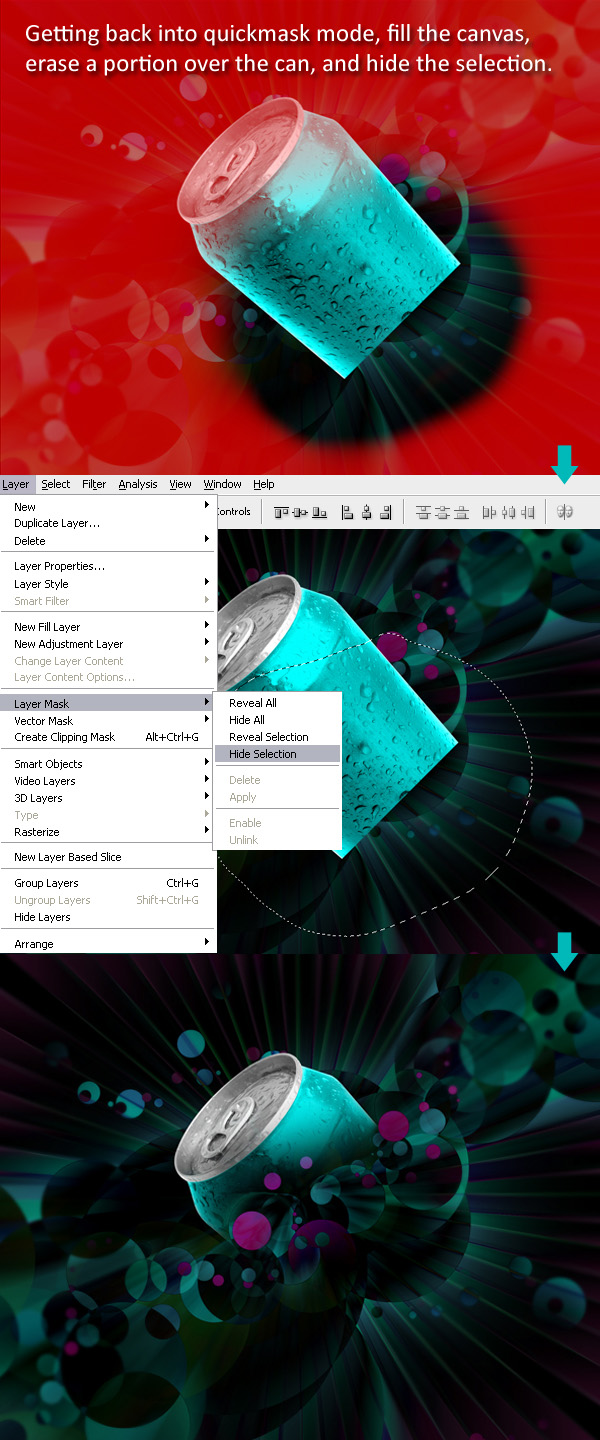
Now you need to hide a part of the can in order to fade it into the rest of the photo. A simple layer mask should suffice. So enter Quickmask Mode again. Then fill the entire canvas with black. Erase the part that you want left out with a soft brush. After that, exit Quickmask Mode. Then go to Layer > Layer Mask > Hide Selection. You may also want to sharpen it at this point. To do so, go to Filter > Sharpen > Sharpen.

Step 12

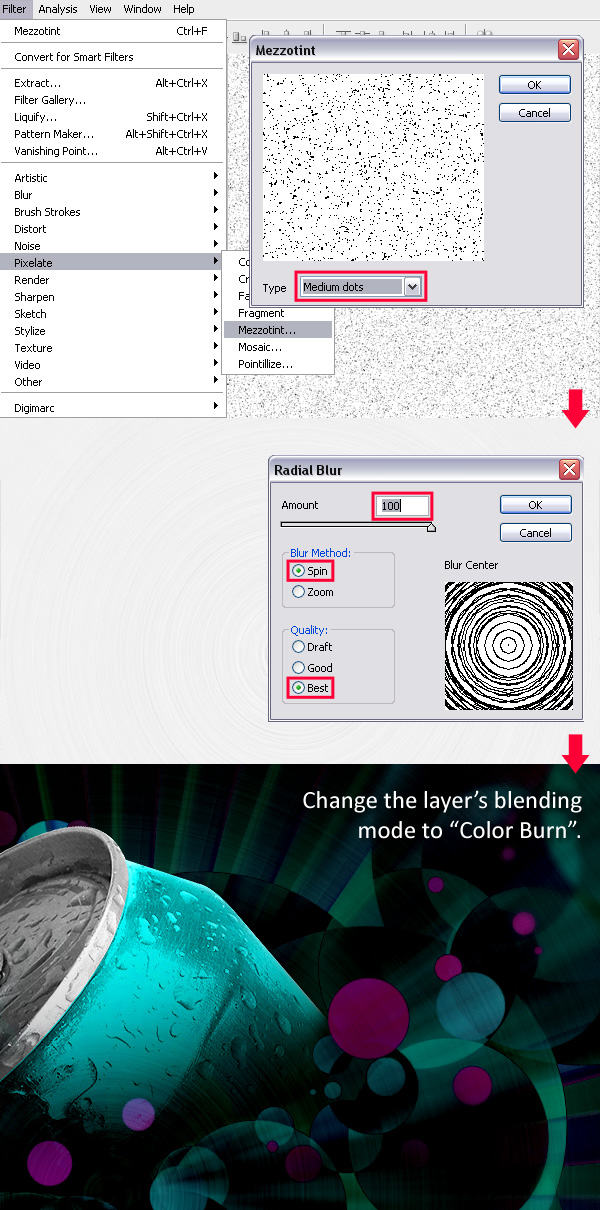
Now if you'll look closely at the photo, you'll notice that it's simply too smooth. Rather than adding noise or grunge, we'll mimic the can texture by using one of Fabio's tutorials: Creating a Cool Brushed Metal Surface in Photoshop. So first off, fill the canvas area with white. Then go to Filter > Pixelate > Mezzotint. Select Medium Dots and then apply the filter. Then set the layer's Blending Mode to Color Burn.

Step 13

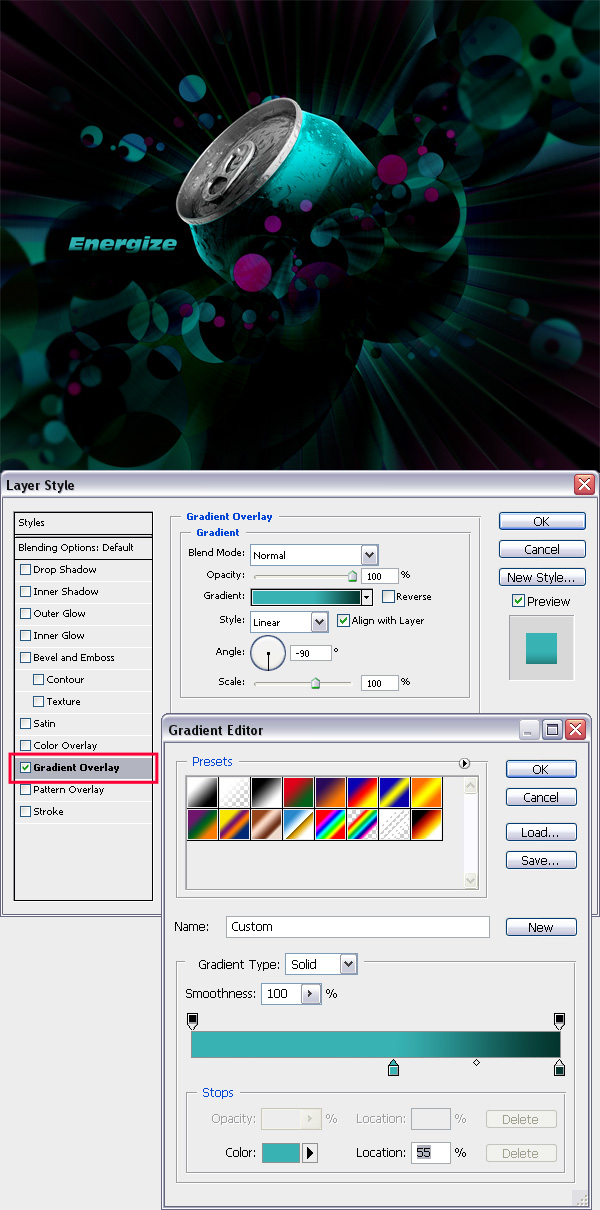
In the final step is to add the title on the left side of the canvas. I used a font called Incised901 NdIt BT, which is the abbreviated name for Incised 901 Nord Italic. After typing it in, double-click on the layer, and use the layer style described in the photo below.

Final Result

And that's it! One energy drink ad ready to go!

0

Photoshop The Dark Knight Grunge Wallpaper

A quick Photoshop tutorial on the making of a grunge-style TDK (The Dark Knight) wallpaper!

The Dark Knight Finished Photoshop Tutorial

(1680 x 1050 download)

Introduction

I’d like to point out that I was inspired to design this after seeing (and using) Louie Mantia’s The Dark Knight wallpaper, which you can find here. He also has tons of other amazing wallpapers that you can download in fullscreen or widescreen resolutions.

Obviously you know what we’ll be making in this tutorial, but you should know that you should at least have basic knowledge of Photoshop to follow completely through. We’ll be using a lot of the basics in Photoshop, including tools and layer-related stuff.

1. Making your Canvas

We need to start by making a new document in Photoshop. For this tutorial you should use the resolution that fits your screen - in my case 1680 x 1050! Bring some rulers onto your canvas in the center.

Select some appropriate colors then drag a radial gradient in the middle of your document.

Radial Gradient Screenshot

Colors used were #3d3b3c and #0e0d11.

2. Background Texture

Time to add a little detail to the background. Find and copy onto your canvas a nice, grungy texture. For this you can use paper, stone, abstract or whatever! A good place to start is CG Textures.

Start with a texture of some metal scratches. Copy it into your canvas, resize it then mess with the layer mode & opacity/fill. I tried Color Dodge with a fill of 30%.

Metal Scratches Texture Added

Get another texture, this time you can use something random. Again mess with the layer mode and opacity, use whatever comes out nice & to your liking.

Rusty Texture Added

(rusty metal texture added)

3. Bat Logo

Time to get a nice bat logo for our wallpaper. For this you might want to go to Google Images and search for a good-quality batman logo. Just remember, go for the new and much cooler batman logo, not the old corny one from the ’60s ;)

Since I’m no professional with the Pen Tool or Illustrator, I enlisted the help of my brother Simon in tracing the batman logo, and it came out perfectly:

Batman Logo Traced

If you want to download the batman logo used above, please feel free: Download Batman Logo PSD

Copy your bat logo onto the canvas and rasterize it (conver it to pixels). Now you may want to make a few duplicates of your original layer, just in case something goes wrong.

4. Metal Effect (Bat Logo)

Now we want to make our bat logo a bit more interesting. Do you have any ideas on how to do that? I personally had a great struggle with this part… but anyway, follow this and I’m sure we’ll come out with a decent metal effect ;)

Start by darkening up your logo a little bit (start with a base color of #878787). Now, head into the blending options for your bat layer and apply the following layer styles:

Remember: depending on what size document and logo you’re working with, you may need to tweak those settings. I now have a basic beveled effect:

Beveled Bat Logo (Layer Styles Added)

OK, not looking so great, yet!

Create a new layer (layer > new > layer) then merge this layer together with your logo layer, this will apply the layer styles to the pixels so we can start afresh. Find and get out the Burn Tool, set the settings to low (Midtones, 30%) and do a little bit of burning on the inside of the logo.

Light Burn Tool

Now, using the Dodge Tool with moderate settings (Highlights, 35%) do a little bit of dodge-work on the edges/corners of your logo.

Dodge Tool Corners

Get out the Burn Tool again, using the same settings as before, darken the middle area of your logo a little more.

Burn Tool Inside

Now it’s time for some more layer styles:

Again, depending on what sizes you’re working with here, you may need to alter the inner shadow/inner glow settings.

Layer Styles Applied

Not bad now! As done before, create a new layer then merge it with the layer applied with the layer styles. After this, darken up your logo a little more using the levels feature (ctrl+l).

Darkened using Levels

OK, we’re done for that part, but we want to add a little more metal to the logo (next step).

5. Metal Textures (Bat Logo)

Again, check out your texture resources and find some nice, rusty metal textures. To start with I used a ‘galvanized’ metal texture.

Copy your texture to the canvas, resize it then crop it to the bat logo pixels (using a layer mask).

Galvanized Metal Texture Cropped

Now, time to mess with some layer modes. For the first galvanized metal texture layer I used Color Dodge with 40% fill, then I duplicated this layer and changed the layer mode to Overlay and left the fill opacity intact.

Layer Mode Changes Made

Not really noticeable, hey? Anyway, to finish off I added one more texture on top, with a large rusty bit at the top:

Dirty Grunge Metal Texture

For this layer I used Linear Burn and 27% fill (please remember, all the textures used in this tutorial can be downloaded from CG Textures).

Rusty Metal Layer Mode Change

(click for larger version)

6. Finshing Effects for Bat Logo

OK, to finish off with the bat logo I think we should add a shadow and also one of those cool light rays in the background. For the shadow, simply apply an Outer Glow layer style to the main layer.

For the ‘cool light ray’ effect I was talking about, get one of your original bat logo layers (with one solid color) and apply Filter > Blur > Radial Blur with similar settings to these:

Radial Blur Filter Settings

Now we have a cool blur like this:

Radial Blur Effects

I think a good idea for a better effect would be to make the shape slightly bigger before apply radial blur, so it stands out on the sides a little bit more. Anyway, after you’re done with the radial blur, change the layer mode to Color Dodge and lower the fill if you think it necessary.

Layer Mode Changed

So, as you can see, on the left we have the final bat logo on top of the light ray in the background, and on the right is the final light ray with the layer mode changed.

Further Effects

As I write this I continue getting ideas to improve on the final product, but I can’t list them all! You should keep adding your own stuff to the outcome though, as you’ll always come across a better effect.

One idea is to create another light ray effect and place it on top of all the other layers, use a layer mode such as Overlay and erase away some of the inner area.

Additional Light Ray Effect

(additional light ray effect on the right, as explained above)

7. Additional Textures

If you want a much darker outcome, you should continue adding textures on top of the whole document (not just the shape or the background, but the whole thing) and continue playing with layer modes, fills, layer masks, etc.

Don’t forget the ole trusty but crusty brushes either!

The Dark Knight Finished Photoshop Tutorial

(more textures, more adjustment layers, etc.)